Learning how to connect airpods to laptop computers running Windows is one of the most common challenges for Apple users who also use PCs for work or school. While AirPods pair seamlessly with iPhones and MacBooks, connecting them to a Windows 10, Windows 11, or even older Windows 7 laptop requires a few manual steps. If you have been struggling to sync your Apple earbuds to your PC, you are not alone.
Because Apple designs its ecosystem to prioritize iOS devices, PC users often experience Bluetooth pairing errors or audio issues when trying to pair them.
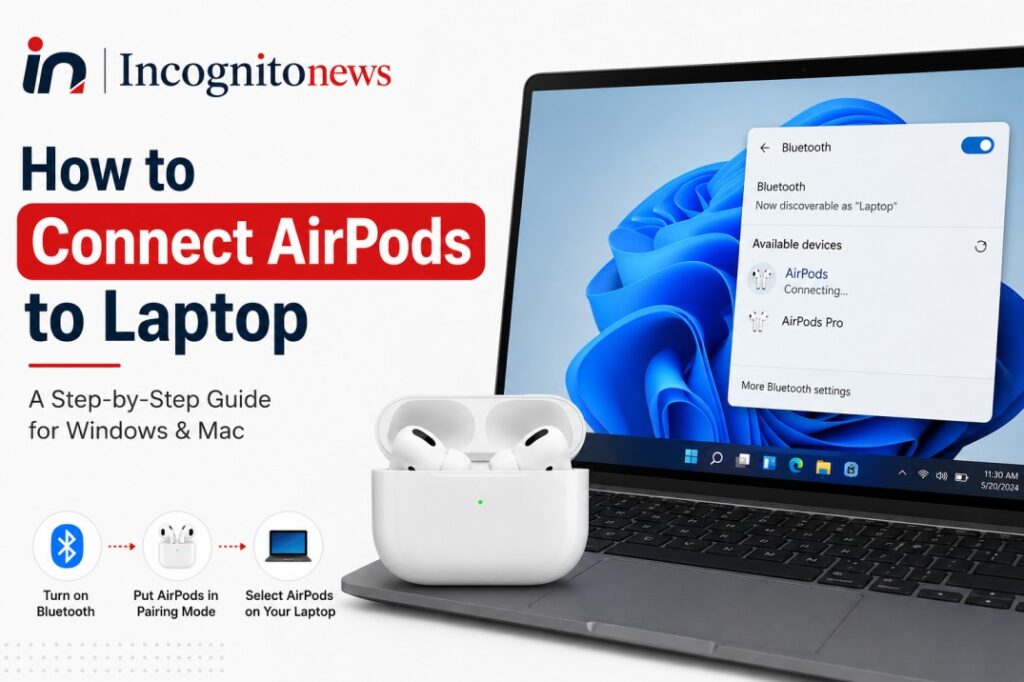
In this comprehensive guide, we will break down exactly how to connect apple airpods to laptop systems. We will provide step-by-step instructions for Windows 10 and 11, look at brand-specific setups for HP, Dell, and Lenovo laptops, explain how to handle AirPods Pro, and provide solutions to resolve common Bluetooth connection errors.
If you are setting up other wireless or smart home devices, you can also read our guide on how to connect ring doorbell to alexa to sync your home security devices.
1. How to Put Your AirPods into Pairing Mode
Before you can add your AirPods to any Windows laptop, you must force the AirPods into Bluetooth pairing mode. If the AirPods are currently connected to your iPhone, they will not automatically show up on your PC’s Bluetooth list.
Follow these steps to prepare your AirPods:
- Place both AirPods inside their white charging case.
- Ensure the charging case has at least a 20% charge (the light should not be flashing red).
- Open the lid of the charging case.
- Press and hold the circular Setup button on the back of the case.
- Keep holding the button for 5 to 10 seconds until the status light (located on the front or inside the case) begins flashing white. This flashing white light indicates that the AirPods are officially in pairing mode.
2. How to Connect AirPods to Laptop (Windows 11)
If you are running the latest Windows 11 operating system on your laptop, follow these steps to pair your earbuds:
- Put your AirPods into pairing mode (status light flashing white).
- On your Windows 11 laptop, click on the Start Menu and open Settings (the gear icon).
- In the left-hand sidebar, select Bluetooth & devices.
- Ensure the main Bluetooth toggle is switched On.
- Click on the large Add device button at the top of the menu.
- In the “Add a device” popup window, select Bluetooth.
- Wait a few seconds for your laptop to scan local devices. Locate and click on your AirPods from the list (they will typically appear as “Shally’s AirPods” or “AirPods”).
- The system will display a “Your device is ready to go!” message. Click Done.
3. How to Connect AirPods to Laptop Windows 10
If your PC is running the older Windows 10 operating system, the interface looks slightly different. Follow these steps if you are wondering: how to connect airpods to laptop windows 10?
- Open the lid of your AirPods case and hold the setup button until the light flashes white.
- On your Windows 10 laptop, navigate to the bottom-left corner and click the Start Menu > Settings.
- Select Devices from the settings menu.
- Click on Bluetooth & other devices in the left-hand menu.
- Ensure the Bluetooth switch is toggled On.
- Click Add Bluetooth or other device at the top of the page.
- Select Bluetooth in the black popup window.
- Your PC will begin scanning. When you see your AirPods appear, click on them to finalize the connection.
4. How to Connect AirPods to Laptop Windows 7
If you are using an older legacy laptop running Windows 7, you can still use your AirPods, though the process is entirely manual:
- Put the AirPods in pairing mode (flashing white light).
- Click the Start Menu and select Devices and Printers.
- Click Add a device in the top-left corner of the window.
- Wait for your PC to locate the AirPods and select them.
- Click Next to let Windows download the necessary Bluetooth drivers and establish the connection.
How to Pair AirPods to Specific Laptop Brands
Many users search for brand-specific instructions because different laptop manufacturers use different Bluetooth hardware drivers. Whether you are using an HP, Dell, or Lenovo laptop, the setup is identical, but here is what you need to know:
How to Connect AirPods to HP Laptop
To connect airpods to hp laptop systems, you must ensure that your HP Bluetooth drivers are active. Go to the system tray (bottom-right corner of your screen), click the Bluetooth icon, select “Add a Bluetooth Device,” and follow the standard pairing steps. If the connection fails, use the HP Support Assistant app to update your wireless card drivers.
How to Connect AirPods to Dell Laptop
If you want to connect airpods to dell laptop computers, make sure Dell Mobile Connect or any pre-installed Dell wireless software is not blocking the Bluetooth antenna. Navigate to Settings > Bluetooth and click the plus (+) sign to search for the flashing AirPods case.
How to Connect AirPods to Lenovo Laptop
To successfully connect airpods to lenovo laptop devices, open the Lenovo Vantage utility app first to check that your Bluetooth adapter is enabled and updated. Once verified, go to Windows settings and add the AirPods as a standard audio device.
How to Connect AirPods Pro to Laptop
If you own the premium AirPods Pro or AirPods Max, you might wonder if the process is different. If you need to know how to connect airpods pro to laptop computers, follow these adjustments:
- Active Noise Cancellation (ANC): When connected to a Windows laptop, your AirPods Pro will still support physical ANC and Transparency modes. You can toggle these by pressing and holding the force sensor on the stem of the AirPods.
- Spatial Audio: Note that advanced Apple-specific features like Spatial Audio, head tracking, and automatic device switching are not supported on Windows.
Troubleshooting: Why Won’t My AirPods Connect to My Laptop?
If you are asking: how do i connect my airpods to my laptop when the pairing fails, or if your airpods are not connecting to laptop systems, try these verified troubleshooting fixes:
1. The AirPods Keep Disconnecting
If your AirPods pair successfully but disconnect after a few seconds, it is usually because they are trying to connect back to your iPhone.
- Fix: Turn off the Bluetooth on your iPhone, iPad, or Mac temporarily while using them with your Windows PC.
2. No Sound is Coming Through the AirPods
Sometimes Windows will pair the AirPods as a “LE-AirPods” (Low Energy) device instead of an audio device, resulting in zero sound.
- Fix: Go to Settings > Devices > Bluetooth. Select your AirPods and click Remove Device. Put the AirPods back in their case, restart your laptop, and perform the pairing process again. Ensure you select the option that has a headphone icon next to it, not a phone or screen icon.
3. Set AirPods as the Default Output Device
If the AirPods are connected but sound still plays from your laptop speakers:
- Fix: Click the speaker icon in the bottom-right corner of your Windows taskbar. Click the arrow next to the volume bar and select Headphones (AirPods Stereo) as your active playback device.
Frequently Asked Questions (FAQs)
How to add airpods to laptop?
To add them, put both AirPods in their case, open the lid, and hold the setup button on the back of the case until the light flashes white. Then, go to your laptop’s Bluetooth settings, click “Add Device,” and select your AirPods.
How to connect my airpods to my laptop without the case?
You cannot connect your AirPods to a new laptop for the first time without the charging case, as the physical setup button on the case is required to activate pairing mode. Once they have been paired, you can take them out of the case and they will automatically connect.
Why does my Windows laptop show my AirPods as “LE-AirPods”?
Windows sometimes incorrectly identifies the low-energy Bluetooth signal of the AirPods. If this happens, remove the device from your Bluetooth list, turn Bluetooth off and on again, and search for the device when the case is actively flashing white.