The PlayStation 5 DualSense controller is widely regarded as one of the finest gamepads ever engineered. Featuring ergonomic grips, responsive analog sticks, immersive haptic feedback, and dynamic adaptive triggers, it offers an incredible gameplay experience.
While the DualSense was built natively for the PS5 console, Sony has embraced PC gaming, making it easier than ever to use your PS5 controller on a Windows PC. Whether you play games through Steam, Epic Games Store, Xbox Game Pass for PC, or standalone launchers, hooking up your DualSense controller takes just a few simple steps.
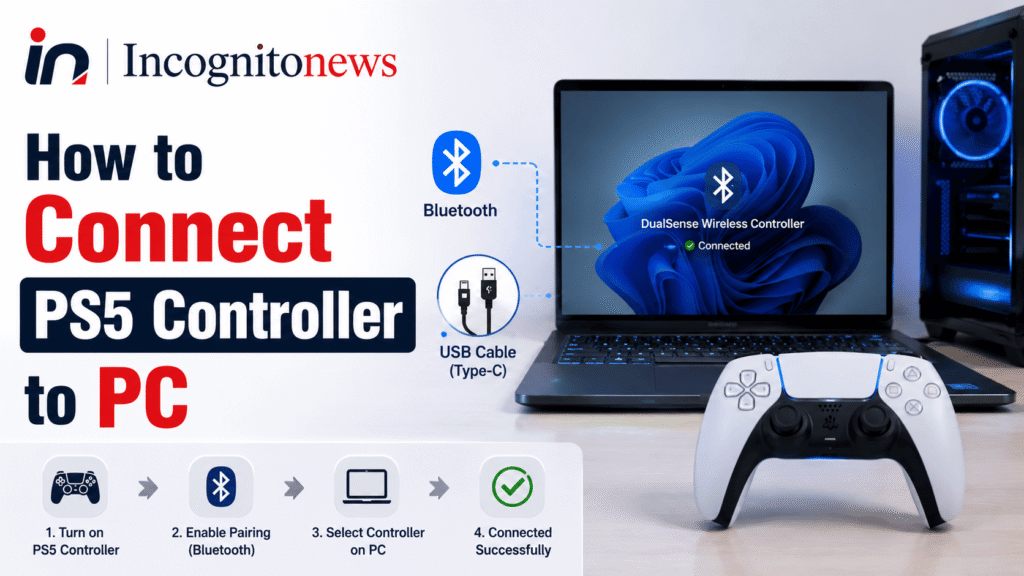
In this comprehensive guide, we will walk you through how to connect a PS5 controller to a PC wirelessly via Bluetooth or using a USB cable, configure controller settings in Steam, enable full compatibility for non-Steam games, and resolve common audio and connection glitches.
How to Connect PS5 Controller to PC Wirelessly via Bluetooth
If your Windows 11 or Windows 10 PC has built-in Bluetooth (or a USB Bluetooth adapter dongle), you can connect your DualSense controller completely wirelessly.
Step 1: Put the DualSense Controller into Pairing Mode
Before your PC can discover your controller, you must manually trigger Bluetooth pairing mode.
- Ensure the PS5 controller is powered off and disconnected from any USB charging cables.
- Press and hold the PS Button (the PlayStation logo between the analog sticks) and the Create/Share Button (the small button located to the left of the touchpad) simultaneously.
- Keep holding both buttons down for 3 to 5 seconds until the lightbar around the touchpad begins flashing rapidly in a double-blink pattern. This indicates that your controller is now broadcasting its Bluetooth signal.
Step 2: Pair the Controller in Windows Settings
- Open Settings on your Windows PC (press Windows Key + I).
- Select Bluetooth & devices from the left sidebar.
- Ensure the Bluetooth toggle is turned On.
- Click Add device (or Add Bluetooth or other device).
- In the popup menu, select Bluetooth (Mice, keyboards, pens, or audio and other kinds of Bluetooth devices).
- Your PC will scan for available devices. Look for Wireless Controller in the list and click on it.
- Windows will complete the pairing process. The lightbar on your controller will turn solid blue, confirming a successful wireless connection.
How to Connect a PS5 Controller to PC via USB Cable
If your computer does not have Bluetooth, or if you want zero input latency and uncompressed audio haptics, connecting via a USB cable is the most straightforward method.
Step-by-Step Wired Setup:
- Obtain a high-quality USB-C to USB-A cable (or a USB-C to USB-C cable if your PC motherboard has a Type-C port).
- Plug the USB-C end into the port on the top edge of your DualSense controller.
- Plug the other end directly into an available USB port on your computer.
- Windows will automatically detect the device, install standard human interface drivers, and illuminate the controller’s lightbar.
Cable Tip: Ensure you are using a USB data cable, not a cheap power-only charging cable. Power-only cables will charge the battery but will fail to transmit controller input signals to your PC.
How to Configure the DualSense Controller in Steam
Steam offers native support for the PS5 DualSense controller, allowing you to rebind buttons, customize deadzones, adjust lightbar colors, and use the touchpad as a mouse.
Enabling PlayStation Controller Support:
- Open the Steam desktop application on your PC.
- Click Steam in the top-left corner and open Settings.
- Select Controller from the left navigation menu.
- Under the General Controller Settings section, toggle ON the option labeled Enable Steam Input for PlayStation controllers.
- Steam will immediately recognize your DualSense. You can now launch any game in your Steam Library, and Steam Input will map the controller inputs automatically.
Haptics Note in Steam: Select modern PC games (such as Spider-Man Remastered, Ratchet & Clank: Rift Apart, and Returnal) support full PS5 adaptive triggers and advanced haptics on PC—provided your controller is connected via a wired USB cable.
How to Use PS5 Controller for Non-Steam Games (DualSenseX & DS4Windows)
Non-Steam platforms like the Epic Games Launcher, Xbox App (Game Pass), and EA App do not always feature native PlayStation controller drivers. When playing non-Steam titles, your PC may fail to register controller button presses.
To fix this, you can use lightweight third-party utilities that convert DualSense inputs into standard Xbox (XInput) signals recognized by all PC games.
Option A: Using DualSenseX (Recommended for Modern PC Games)
DualSenseX is an open-source tool designed specifically for the PS5 controller on Windows.
- Download the latest free version of DualSenseX from its official GitHub repository or community page.
- Extract and launch the application.
- DualSenseX will automatically detect your connected controller and emulate an Xbox 360 or DualShock 4 controller.
- The app also allows you to manually adjust trigger resistance presets (e.g., Very Hard, Machine Gun, or Semi-Automatic) for games that do not natively support adaptive triggers.
Option B: Using DS4Windows
- Download DS4Windows and install the required ViGEmBus driver when prompted.
- Connect your PS5 controller via Bluetooth or USB.
- Open DS4Windows, navigate to the Settings tab, and check Device Options > DualSense Support.
- DS4Windows creates a virtual Xbox 360 controller profile, ensuring 100% compatibility across all PC games.
Troubleshooting Common PS5 Controller PC Issues
If you run into issues while playing on PC, consult these quick solutions for the two most common DualSense glitches:
Issue 1: Windows Recognizes Controller as an Audio Speaker (No Sound)
Because the DualSense features a built-in speaker and microphone array, Windows sometimes mistakenly sets the controller as your default audio playback device, muting your PC speakers or headset.
How to fix it:
- Right-click the Speaker Icon in your Windows taskbar and select Sound settings.
- Under the Output section, change your playback device back to your regular PC Speakers or Headphones (instead of Wireless Controller Audio).
- Under the Input section, reselect your primary microphone.
Issue 2: Controller Keeps Disconnecting Over Bluetooth
- Open Device Manager on your PC.
- Expand the Bluetooth category, right-click your Bluetooth adapter, and select Properties.
- Go to the Power Management tab and uncheck “Allow the computer to turn off this device to save power”.
- Click OK. This prevents Windows from power-throttling your Bluetooth receiver during gameplay.
PS5 Controller PC Connection Methods Comparison
The table below compares connection types, feature support, and latency for using a DualSense controller on Windows PC:
| Feature / Metric | USB-C Wired Connection | Bluetooth Wireless Connection |
|---|---|---|
| Input Latency | Ultra-Low (~2ms to 4ms) | Low (~4ms to 8ms depending on adapter) |
| Native Adaptive Triggers | Full Support (Supported Games) | Limited / Standard Resistance |
| Uncompressed Audio Haptics | Full Support (Requires USB) | Not Supported over Bluetooth |
| Battery Life Impact | Unlimited (Charges while playing) | 6 to 12 Hours per charge |
| Setup Complexity | Instant Plug-and-Play | One-Time Bluetooth Pairing |
| Software Required | Steam Input or Native Game Support | Steam Input, DualSenseX, or DS4Windows |
Frequently Asked Questions
Do PS5 adaptive triggers work on PC games?
Yes. A growing list of modern PC titles—including Helldivers 2, The Last of Us Part I, Cyberpunk 2077, and Death Stranding—natively support PS5 adaptive triggers and haptic feedback on PC, provided the controller is connected via a wired USB cable.
How do I check my PS5 controller battery level on Windows?
While Windows Settings does not display exact battery percentages, you can check the battery level inside Steam Big Picture Mode or by using third-party apps like DualSenseX or DS4Windows, which display real-time battery status in your system tray.
How do I turn off a PS5 controller connected to PC via Bluetooth?
To manually turn off your DualSense controller without a PS5 console, press and hold the PS Button for 10 seconds until the blue lightbar turns off completely.
Final Thoughts & Disclaimer
Connecting a PS5 DualSense controller to your PC unlocks the best of both worlds: high-end PC performance combined with industry-leading controller ergonomics. By utilizing Bluetooth pairing, configuring Steam Input, or relying on DualSenseX for non-Steam titles, you can enjoy seamless gaming across your entire PC library.
Hardware & Software Disclaimer: Incognito News is an independent technology publisher and is not affiliated with or endorsed by Sony Interactive Entertainment, Microsoft Corporation, or Valve Corporation. All trademarks, logos, and brand names are property of their respective owners.