Integrating your smart home devices is the best way to get the most out of your home automation system. If you own both a Ring Video Doorbell and an Amazon Echo speaker or Echo Show screen, linking them together is a game-changer.
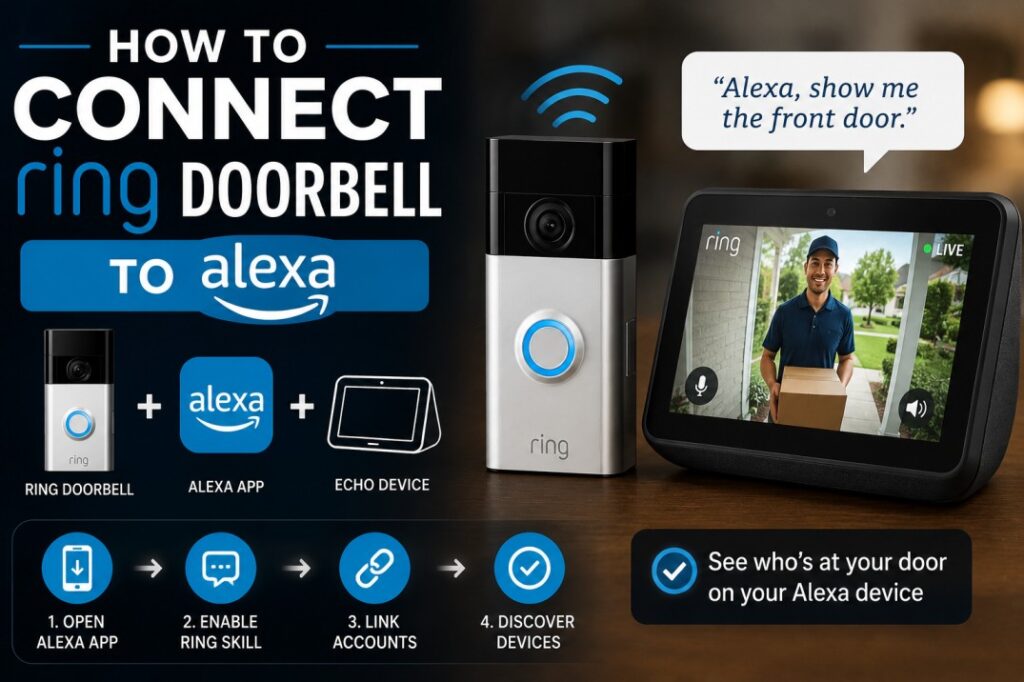
By connecting your doorbell to your Alexa devices, you can hear chimes throughout your house when someone presses the button, talk to visitors hands-free, and even view live video feeds on your screen-based Alexa devices.
If you are trying to set up this system, you might ask: how to connect ring doorbell to alexa?
In this comprehensive guide, we will walk you through the step-by-step process of linking your accounts, enabling the Ring skill, setting up live announcements on your Echo speakers, and troubleshooting common connection issues.
Prerequisites: What You Need to Get Started
Before you begin the setup process, ensure you have the following ready to make the integration as smooth as possible:
- An Active Amazon Account: This is the account you use to log into your Alexa app.
- An Active Ring Account: The account associated with your registered Ring Doorbell.
- The Amazon Alexa App: Installed on your iOS or Android smartphone and logged in.
- The Ring App: Installed on your phone and verified that your doorbell is online and working.
- A Compatible Echo Device: Such as an Echo Dot, Echo Pop, Echo Studio, or an Echo Show screen.
Step-by-Step: How to Connect Ring Doorbell to Alexa Online
Because Amazon owns Ring, the integration between these two systems is native and highly optimized. Follow these exact steps to link your devices:
Step 1: Enable the Ring Skill in the Alexa App
- Open the Amazon Alexa app on your smartphone.
- Tap on the More button (three lines icon) in the bottom-right corner of the screen.
- Select Skills & Games from the menu.
- Tap the magnifying glass icon in the top-right corner and search for “Ring”.
- Select the official Ring skill from the search results and tap Enable to Use.
Step 2: Link Your Ring Account to Alexa
- After tapping enable, the app will redirect you to the Ring login page.
- Enter the email address and password associated with your Ring account.
- Complete the two-factor authentication (if prompted) by entering the code sent to your phone or email.
- Tap Authorize or Link Account to grant Amazon permission to access your Ring cameras and doorbells.
Step 3: Discover Your Ring Doorbell
- Once the accounts are successfully linked, the Alexa app will prompt you to discover devices. Tap Discover Devices.
- Alexa will scan your local Wi-Fi network and account linkages. This process can take up to 45 seconds.
- Once found, your Ring Doorbell will appear under the Devices > Cameras tab in your Alexa app.
- Tap Set Up Device and assign your doorbell to a specific room (e.g., “Front Door” or “Porch”) to finish the process.
How to Set Up Doorbell Press Announcements on Echo Speakers
Once you learn how to connect ring doorbell to alexa, the next step is configuring your Echo speakers to act as indoor chimes. This feature ensures you hear an announcement (e.g., “Someone is at the front door”) throughout your home when the doorbell is pressed.
How to enable announcements:
- Open the Alexa app and navigate to Devices.
- Tap on Cameras and select your Ring Doorbell from the list.
- Tap the Settings (gear icon) in the top-right corner.
- Locate the Announcements section.
- Toggle on Doorbell Press Announcements.
- Tap Announcement Devices to select which specific Echo speakers in your house should play the chime and announcement.
How to View Your Ring Camera Feed on an Echo Show
If you own an Echo Show (like the Echo Show 8 or Echo Show 5), you can utilize your screen to view live video feeds from your Ring Doorbell.
Voice Commands to try:
- To view your live feed: “Alexa, show my front door.”
- To stop the live feed: “Alexa, hide the front door.”
- To talk to visitors: “Alexa, talk to the front door” (This opens a two-way audio communication stream so you can speak to whoever is at your doorstep).
NOTE
If you have a newer Echo Show, you can enable “Person Detection Announcements” in the Alexa settings. When turned on, your Echo Show will automatically display the live camera feed on your screen the moment your Ring Doorbell detects a person, even before they press the button.
Troubleshooting: Why Won’t My Ring Connect to Alexa?
If you followed the steps above but your devices are not communicating, try these troubleshooting fixes:
1. The “Device is Unresponsive” Error
If Alexa says the Ring Doorbell is unresponsive:
- Check Wi-Fi: Open the Ring app and check your doorbell’s RSSI (signal strength) under Device Health. If the RSSI is higher than -60, the doorbell is too far from your router, causing connection drops.
- Re-link the Skill: Go to Alexa App > Skills & Games > Your Skills > Ring. Disable the skill and re-enable it to refresh the cloud connection token.
2. No Announcements Playing on Echo Dot
If your Echo speaker is silent when the doorbell is pressed:
- Ensure Do Not Disturb mode is turned off for that specific Echo device in the Alexa app.
- Verify that the volume on your Echo speaker is turned up to an audible level.
Frequently Asked Questions (FAQs)
How to connect ring doorbell to alexa?
To connect your Ring Doorbell to Alexa, open the Alexa app, navigate to Skills & Games, search for the Ring skill, tap Enable to Use, and log into your Ring account to link the devices. Once linked, tap Discover Devices to complete the setup.
Do I need a subscription to connect Ring to Alexa?
No. Linking your Ring Doorbell to Alexa is completely free. You do not need a Ring Protect Plan or an Amazon Prime subscription to hear doorbell announcements or view live video feeds. However, saving recorded videos still requires a Ring subscription.
Can Alexa automatically show the camera when someone rings the doorbell?
Yes. On Echo Show devices, you can set up a routine or enable automated view settings under the Ring device settings in the Alexa app to automatically display the live camera feed whenever the doorbell is pressed.
Why is my Ring Skill not working on the Alexa app?
This is usually caused by an expired authorization token. To fix this, disable the Ring skill in the Alexa app under Skills & Games, and then re-enable it by entering your Ring login credentials again.