If you’ve booted up your TV only to be met with a blank display, you’re definitely not alone — this is one of the most common Firestick issues people run into. You sit down to watch a movie, plug in the streaming device, see the initial loading logo, and then the picture cuts out entirely.
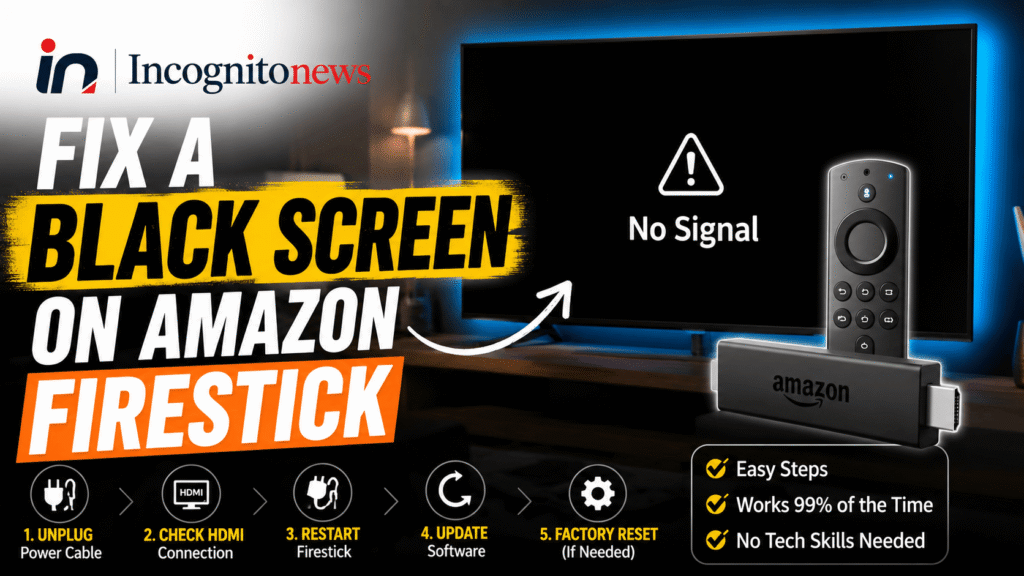
The good news is that losing your video signal usually stems from a handful of small, fixable technical issues rather than a broken device. Here’s how to work through them.
The Power Supply Problem: TV USB vs. Wall Outlets
One of the most frequent reasons your streaming device fails to display a picture comes down to how it’s getting power. The device needs a steady, reliable current to process high-definition video.
Many people plug the Firestick’s USB power cable directly into the USB port on the back of their TV. It looks clean and hides the wires, but it’s actually a major cause of instability. Most built-in TV USB ports only output a low current — usually around 0.5 amps — while the Firestick, especially newer 4K models, needs more current than that to run properly under load.
When the device tries to stream video or load a heavy app, that low current causes the hardware to brown out, resulting in a blank screen or a constant reboot loop.
The fix: Always plug the USB cable into the official power adapter that came in the box, and plug that adapter directly into a wall outlet — not the TV’s USB port. This gives the hardware the steady power it needs for video processing.
If your screen comes back but your remote still feels laggy or unresponsive, that’s usually a separate Bluetooth pairing issue try holding the pairing button on the remote for about 10 seconds while it’s close to the Firestick to re-sync it.
Resolving HDCP Digital Handshake Errors
Another common cause of a black screen is a failed HDCP (High-bandwidth Digital Content Protection) handshake. HDCP is a copy-protection protocol that prevents users from recording movies or shows through HDMI connections.
When you plug the Firestick into your TV, both devices perform a digital handshake to verify the display is secure. If that handshake fails, the screen cuts to black.
Handshake failures usually happen because of:
- Loose connections — the device isn’t seated firmly in the HDMI port
- Static build-up — leftover electrical charge in the HDMI port disrupting the signal
- Old or third-party cables — HDMI extensions that don’t support modern HDCP standards
To reset the handshake, do a full power cycle of your setup: turn off both the TV and the Firestick, unplug all HDMI connections, wait about 60 seconds to clear any static charge, reconnect everything firmly, and power the devices back on.
Finding the Correct HDMI Input Channel
It sounds obvious, but a lot of people accidentally leave their TV on the wrong input. If your TV has multiple HDMI ports, it’s easy to lose track of which one the Firestick is plugged into.
Using your TV’s own remote, press the Input or Source button to cycle through the available channels, and match the label on-screen (like “HDMI 2”) to the physical port on the back of the TV. If you’re running the Firestick through a soundbar or AV receiver, try plugging it directly into the TV’s primary HDMI port instead, just to rule out the audio system as the culprit.
Also Read This : firestick remote not working
How to Power Cycle Your Device and TV
When a firmware update hangs or the system memory gets clogged, a full reboot is usually the most reliable fix.
Unplug the power cord directly from the Firestick (or its adapter from the wall) — don’t just turn off the TV with the remote, since that only puts the TV on standby while the Firestick keeps running in the background. Leave it completely unplugged for at least two full minutes to let the internal capacitors drain and clear out temporary cache files, then plug it back in and wait for the home screen to load.
Checking for Hardware Overheating
Streaming devices are essentially tiny computers packed into a small plastic case, and since they don’t have internal cooling fans, they rely entirely on passive heat dissipation.
If the Firestick is plugged directly into the back of a TV that’s pushed close to a wall, heat can build up fast. Once the internal processor gets too hot, the device automatically shuts down video output to protect itself from damage.
To improve airflow, use the flexible HDMI extender cable that comes in the box. It lets the Firestick hang away from the warm TV panel, which helps with both temperature and Wi-Fi signal reception.
Frequently Asked Questions
Why is my Firestick screen black but the sound still plays?
If you can hear audio but see no picture, the device is running, but the HDMI connection has failed. This is typically a loose connection, an HDCP handshake error, or a faulty port. Try unplugging the HDMI cable for 60 seconds and reconnecting it firmly.
Can a faulty HDMI port cause a blank display?
Yes. Over time, HDMI ports can wear out or collect dust, which disrupts the signal. Try a different HDMI port on your TV to see if that resolves it.
Why does my Firestick get stuck on the loading logo?
This is usually a sign of inadequate power. If you’re using the TV’s USB port, switch to the official wall adapter. If it still gets stuck, the system files may have been corrupted during a background update.
How do I know if my Firestick is overheating?
If the device feels hot to the touch and the display cuts out after 30-60 minutes of continuous streaming, it’s likely overheating. Use the HDMI extender to move it away from the TV body for better airflow.
Does the HDMI extender cable degrade video quality?
No. It simply routes the digital signal away from the TV body and doesn’t affect resolution or audio quality — it’s actually recommended to help prevent overheating and improve Wi-Fi reception.
Disclaimer: Troubleshooting electronics involves handling electrical components. This guide provides general information for consumer convenience. If you suspect hardware damage or an electrical fault, consult the official manufacturer support portal for assistance.