If you turn on your television only to find that your screen is unresponsive to keypresses, you are likely dealing with a firestick remote not working properly. This common issue plagues millions of streaming users in the United States every single day. Because Amazon Fire TV devices rely heavily on Bluetooth connectivity rather than traditional line-of-sight infrared, a simple connection drop, battery drain, or pairing glitch can render your remote useless. Fortunately, diagnosing and fixing a non-responsive remote is a straightforward process.
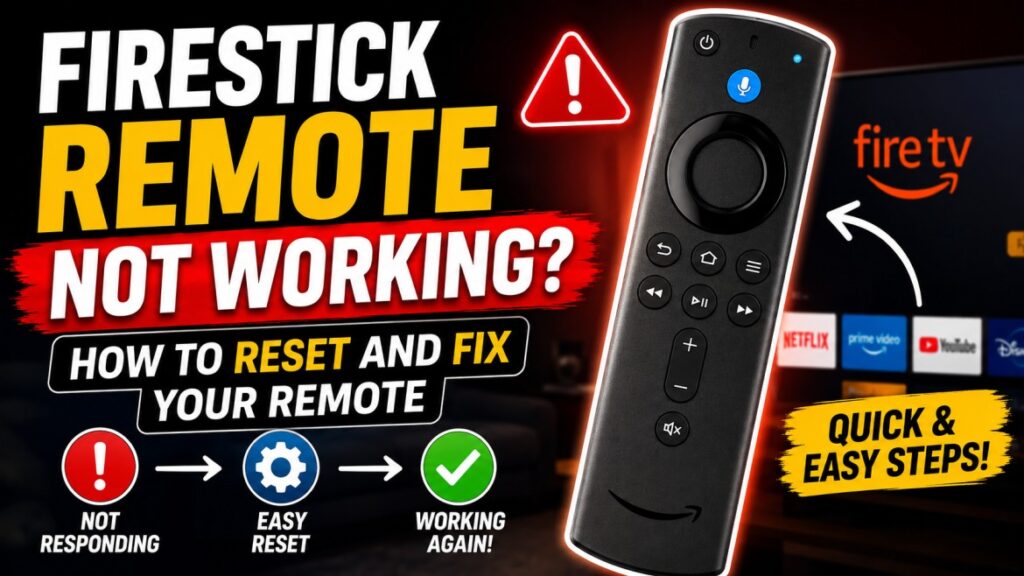
Whether you need to pair a new replacement controller or figure out how to reset firestick remote buttons to resolve a frozen screen, this troubleshooting guide has you covered.
In this comprehensive guide, we will analyze the primary reasons behind a firestick remote not working, provide step-by-step instructions on how to perform a reset firestick remote procedure, explain the difference between battery types, detail what to do if your remote has a hardware failure, explain how to reset firestick streaming devices without a physical controller, and offer solutions to get you back to streaming your favorite content.
Why is Your Firestick Remote Not Working? Common Causes
Before diving into the reset steps, let us isolate the issue. Understanding why your remote stopped responding helps prevent the problem from happening again:
- Battery Depletion: Fire TV remotes consume power constantly due to their Bluetooth connection and voice-activated Alexa microphone. Even if the batteries work in a standard TV remote, they may not have enough voltage for a Firestick remote.
- Lost Pairing: If your Firestick updates its firmware or experiences a sudden power outage, it can lose its paired Bluetooth connection with the remote.
- Bluetooth Interference: Bluetooth signals operate on the 2.4 GHz frequency. If your router is placed too close to the Firestick, or if you have multiple wireless devices nearby, it can disrupt the connection.
- Physical Damage or Obstructions: While Bluetooth does not require a direct line of sight, metal obstructions behind the TV or excessive distance (more than 30 feet) can weaken the signal.
Why Rechargeable Batteries Fail in Firestick Remotes
Many users make the mistake of using rechargeable NiMH batteries when their remote stops working. However, this often exacerbates the problem:
- Voltage Differences: Standard alkaline batteries supply 1.5 volts of electricity. In contrast, rechargeable NiMH batteries only supply 1.2 volts when fully charged.
- Bluetooth Threshold: Because Fire TV remotes require a continuous, high-energy Bluetooth connection to transmit commands and process voice search data, they require a constant 1.5-volt input. If the voltage drops even slightly, the remote will fail to pair.
- What to use: Always use fresh, matching, name-brand alkaline batteries (like Duracell or Energizer) to ensure your remote gets the power it needs.
Step-by-Step Guide: How to Reset Firestick Remote Control
If changing the batteries does not solve the issue, performing a hardware reset of the remote is the most effective fix. This process clears the remote’s internal memory and forces it to establish a fresh connection with your streaming stick.
Depending on which version of the Amazon Fire TV remote you own, the button combination required to reset the hardware will vary.
Use this reference table to find the correct button sequence for your specific model:
| Remote Generation / Model | Buttons to Press & Hold | Hold Time | Next Steps |
|---|---|---|---|
| Alexa Voice Remote (With Power & Volume Buttons) | Left + Menu + Back | 12 Seconds | Release, wait 5 seconds, remove batteries, power cycle Firestick. |
| Alexa Voice Remote Lite | Left + Menu + Back | 12 Seconds | Release, wait 5 seconds, remove batteries, power cycle Firestick. |
| Basic Edition Remote | Home (Hold), then press Menu 3 times, release Home, press Menu 9 times. | N/A | Remove batteries, power cycle Firestick, reinsert and pair. |
| 1st Gen Fire TV Remote | Left + Menu | 15 Seconds | Release, remove batteries, power cycle Firestick. |
Detailed Reset Procedure for Most Alexa Voice Remotes
For the vast majority of Fire TV users in the US owning a remote with dedicated power and volume controls, follow these exact steps to reset firestick remote hardware:
- Disconnect the Power: Unplug your Fire TV Stick from the wall outlet or the back of the TV. Wait at least 60 seconds to ensure it is completely powered down.
- Press the Reset Combination: While the Firestick is unplugged, press and hold the Left button (on the navigation circle), the Menu button (three horizontal lines), and the Back button simultaneously.
- Hold for 12 Seconds: Keep holding the three buttons down for exactly 12 seconds. Do not release them early.
- Wait and Remove Batteries: Release the buttons and wait 5 seconds. Slide off the battery cover and remove the batteries from the remote.
- Reboot the Firestick: Plug the Fire TV Stick back into the power source. Wait for the main home screen to load fully.
- Reinsert Batteries & Pair: Put the batteries back into the remote. Press and hold the Home button for 10 to 15 seconds. The LED light on the remote will flash blue once the pairing is successful.
What to Do If the Reset Fails: Hardware Replacement Options
If you have replaced the batteries with fresh alkaline ones and followed the reset procedure twice, but the remote remains completely unresponsive, your remote likely has a hardware failure (often caused by liquid damage or board corrosion).
Here are your replacement options:
- Buy an Official Replacement: Amazon sells standalone Alexa Voice Remotes that pair instantly with all Fire TV models.
- Third-Party Bluetooth Remotes: There are several budget-friendly universal remotes available online that mimic the layout of the original Firestick remote.
- Use a Gaming Controller: If you have an Xbox or PlayStation controller, you can pair it via Bluetooth to use it as a remote control.
- Stick to the Mobile App: You can continue to use the free Fire TV app on your smartphone as your permanent remote control.
Alternative Guide: How to Reset Firestick Device Without the Remote
If your remote is physically damaged or completely unresponsive even after a hardware reset, you may need to perform a factory reset of the Fire TV Stick itself to clear system errors.
If you are wondering how to reset firestick settings to default without using a remote, use these official workarounds:
Method 1: Use the Official Fire TV App Remote
If your Firestick is still connected to your home Wi-Fi network:
- Download the free Amazon Fire TV app from the App Store or Google Play Store.
- Connect your phone to the same Wi-Fi network as the Firestick.
- Open the app, select your Fire TV Stick, and enter the 4-digit pairing code shown on your TV screen.
- Use the app’s touchscreen interface to navigate to Settings > My Fire TV > Reset to Factory Defaults.
Method 2: Enable HDMI-CEC on Your Television
If your TV supports HDMI-CEC, you can use your standard television remote to control the Firestick:
- Go to your TV’s system settings and turn on HDMI-CEC (called Anynet+ on Samsung, SimpLink on LG, or Bravia Sync on Sony).
- Use the arrow keys on your standard TV remote to control the Firestick screen.
- Navigate to the settings menu to perform the factory reset.
Also Read This : If you enjoy managing your smart home devices through your TV screen, you can also learn how to connect ring doorbell to alexa to set up camera feeds on your smart devices.
Frequently Asked Questions (FAQs)
Why is my fire tv remote not working?
A fire tv remote not working error is usually caused by low battery voltage, a lost Bluetooth connection, or signal interference. Ensure you are using fresh, matching alkaline batteries and are within 10 feet of your Fire TV Stick.
How to reset firestick remote?
To reset the remote, unplug your Firestick from power for 60 seconds. On the remote, hold down the Left, Menu, and Back buttons simultaneously for 12 seconds. Release, wait 5 seconds, remove the batteries, power on the Firestick, reinsert the batteries, and hold the Home button for 10 seconds.
Why is my Firestick remote flashing orange?
A flashing orange or yellow light on your remote indicates that it is currently in pairing mode and is searching for a Fire TV device to connect to. If it continues to flash orange, bring the remote closer to the TV and hold the Home button for 10 seconds.
Can I use a universal remote with my Fire TV Stick?
Yes. Many third-party universal remotes and gaming controllers can be paired with a Fire TV Stick via Bluetooth or through the TV’s HDMI-CEC settings.