Experiencing an unresponsive Roku remote can bring your streaming entertainment to an immediate halt. Whether your Roku TV refuses to register button presses, your remote light flashes continuously green or yellow, or your voice control features suddenly stop responding, remote pairing drops are among the most common technical glitches faced by streaming users.
Because Roku manufactures two distinct types of remotes—simple infrared (IR) remotes and advanced wireless voice remotes—the steps required to re-establish connection vary depending on your hardware model.
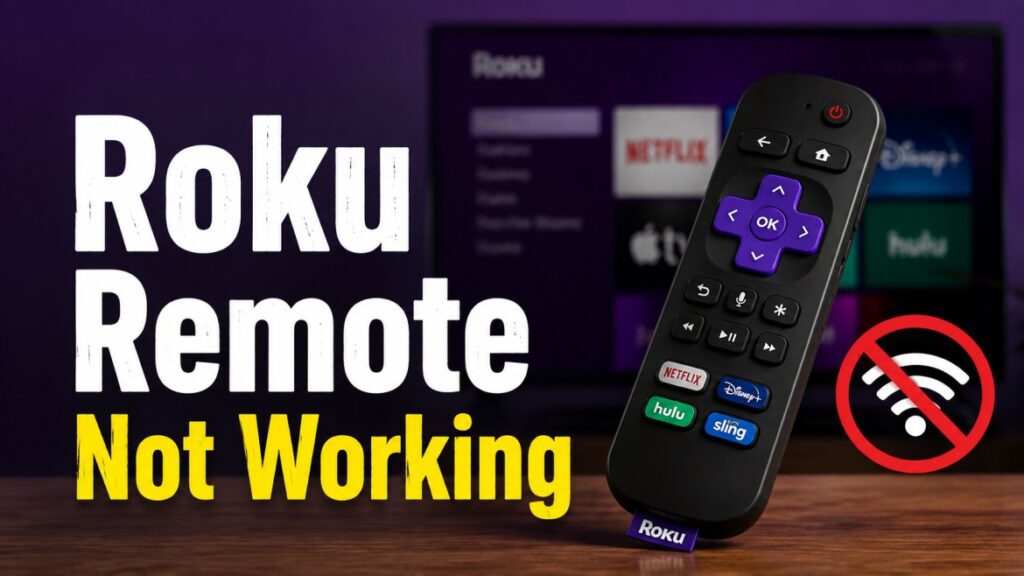
In this comprehensive troubleshooting guide, we cover how to identify your remote type, perform a hard power reset, fix blinking status lights, and re-pair your Roku remote to any Roku streaming stick, box, or Roku TV.
Identifying Which Type of Roku Remote You Own
Before attempting to reset your hardware, check which remote model came bundled with your device:
- Roku Simple Remote (Infrared / IR): Requires a direct line of sight to the front sensor of your Roku TV or streaming box. These remotes do not feature a microphone button, pairing light, or internal wireless pairing button.
- Roku Voice Remote (Wi-Fi Direct / Enhanced): Connects wirelessly over a local Wi-Fi network and does not require a direct line of sight. These remotes feature a microphone button for voice search, a status light, and either a physical pairing button inside the battery compartment or a key combination pairing protocol.
Step 1: Replace Batteries and Clear Residual Power
Weak or unequal battery voltage is responsible for over 70 percent of Roku remote pairing failures. Even if a battery retains enough power to light a small LED, it may lack the voltage required to transmit a stable Wi-Fi Direct signal to your TV.
- Remove the battery compartment cover on the back of your remote.
- Remove both old batteries and discard them responsibly.
- With the batteries removed, press and hold every button on the remote for 15 seconds. This clears lingering static electricity from the internal circuit board memory.
- Insert two fresh, matching AA or AAA batteries (preferably brand-name alkaline batteries, avoiding rechargeable nickel-metal hydride batteries which supply lower 1.2V voltage).
Step 2: How to Reset and Re-Pair a Roku Voice Remote
If your Roku Voice Remote has lost its wireless connection, you must perform a hardware reset to clear existing network pairings and execute a fresh pairing handshake.
Method A: For Remotes WITH a Physical Pairing Button
- Unplug the power cable from your Roku streaming device or wall outlet to turn off your TV.
- Remove the back battery cover from your Roku remote.
- Plug your Roku device back into power and wait for the main home screen to load.
- Locate the small, round Pairing Button inside the battery compartment (usually placed below the batteries).
- Press and hold the pairing button for 5 seconds until the status light begins flashing continuously.
- Hold the remote within two feet of your Roku device. A notification reading “Pairing remote…” will appear on your TV screen within 30 seconds.
Method B: For Remotes WITHOUT a Physical Pairing Button
- Power cycle your Roku device by unplugging it from power for 10 seconds, then plugging it back in.
- Once the main home screen appears on your TV, press and hold the Back button and the Home button on your remote simultaneously.
- Keep holding both buttons together for 20 seconds.
- Release the buttons when the status light begins to flash. The remote will complete its pairing sequence automatically.
Step 3: Hard Reset Your Roku Streaming Device or Roku TV
If resetting the remote alone does not restore functionality, the wireless receiver inside your Roku TV or streaming stick may have encountered a system cache freeze.
- Unplug the power cord from the back of your Roku TV or streaming stick.
- Leave the device completely disconnected from power for 60 full seconds.
- While waiting, remove the batteries from your remote control.
- Reconnect your Roku device to power and wait for the initial Roku logo animation to finish loading on your TV screen.
- Reinsert the fresh batteries into your remote, initiate the pairing command (Method A or B above), and allow the connection to complete.
Step 4: Fix a Blinking Green or Yellow Light on Your Roku Remote
A status light that flashes continuously green or yellow indicates that the remote is actively seeking a wireless connection but is failing to handshake with your Roku player.
How to Resolve Continuous Light Blinking:
- Overheating Streaming Stick: If your Roku Streaming Stick is plugged directly into an HDMI port behind a wall-mounted TV, excessive heat can disable the internal Wi-Fi antenna. Allow the stick to cool down or use a free HDMI extender cable to position the stick away from the back panel.
- Network Interference: Nearby wireless routers, Bluetooth speakers, or microwaves can disrupt the 2.4 GHz Wi-Fi Direct frequency used by Roku remotes. Move electronic devices at least three feet away from your streaming setup.
- Rechargeable Remote Reset: If your remote features a micro-USB or USB-C charging port (such as the Roku Voice Remote Pro), plug the remote into a wall charger for 3 hours. Press and hold the Home and Back buttons for 20 seconds to force a hardware reboot.
Step 5: Use the Official Roku Mobile App as a Backup Remote
If you need immediate control of your TV while troubleshooting or waiting for a replacement remote, you can transform your smartphone into a fully functional touch-screen remote control.
- Download the free Roku App from the Apple App Store (iOS) or Google Play Store (Android).
- Ensure your smartphone is connected to the exact same home Wi-Fi network as your Roku TV.
- Open the app, tap the Devices icon at the bottom of the screen, and select your Roku player.
- Tap the Remote icon to access a virtual directional pad, home button, volume controls, and voice search functionality.
Roku Remote Troubleshooting Summary Table
The table below summarizes remote types, common error symptoms, recommended actions, and expected success rates:
| Remote Type | Observed Symptom | Primary Cause | Recommended Action | Success Rate |
|---|---|---|---|---|
| Simple IR Remote | Buttons unresponsive | Obstructed sensor / dead batteries | Clean TV front sensor & insert fresh batteries | 95% |
| Voice Remote | Green light blinking | Lost Wi-Fi Direct connection | Hold Pairing button for 5 seconds near TV | 90% |
| Voice Remote | No light activity | Drained battery or static freeze | Clear residual static & replace AA/AAA batteries | 85% |
| Rechargeable Pro | Yellow light flashing | Low internal lithium battery | Charge via USB cable for 3 hours | 95% |
| Any Roku Remote | Pairing drops repeatedly | TV wireless receiver freeze | Hard power cycle Roku TV for 60 seconds | 90% |
Frequently Asked Questions
Why is my Roku remote light flashing but not connecting to my TV?
A flashing status light means your remote is in pairing mode but cannot find your Roku device. Unplug your Roku TV for 60 seconds, plug it back in, and hold the remote’s pairing button for 5 seconds within two feet of the screen.
How do I know if my Roku remote is IR or Voice-activated?
Open the battery compartment on the back. If there is a small round button or a flashing LED light inside, you own a Voice Remote. If there is no button or light inside, you own a Simple IR Remote.
Can I pair a new Roku remote without the old one?
Yes. Turn on your Roku TV manually using the physical power button on the TV panel, insert fresh batteries into your new remote, and hold the internal pairing button for 5 seconds until the TV displays the “Pairing remote…” message.
Why did my Roku remote suddenly stop controlling the TV volume?
Volume and TV power controls use separate infrared codes programmed into your remote. Open your Roku TV settings, navigate to Remotes & Devices > Remote > Set Up Remote for TV Control, and follow the on-screen audio prompts to re-pair TV volume.
What should I do if my Roku remote is warm to the touch?
If your remote feels unusually warm or hot, immediately open the back cover and remove the batteries using a towel. Warmth indicates an internal short circuit or battery leakage. Discontinue using those batteries and replace the remote if the issue persists.
Disclaimer: Troubleshooting a Roku remote is straightforward once you identify your hardware type and execute the appropriate pairing sequence. By clearing residual static power, inserting fresh alkaline batteries, and performing a timed 60-second hard power cycle on your Roku TV, you can restore full remote control functionality quickly.