If your DualSense controller is broken, dead, or refuses to sync with your console, you can easily Reset PS5 Without a Controller using alternative hardware buttons or input devices. While the PlayStation 5 (PS5) is a powerhouse of next-generation gaming, software glitches, frozen screens, and system lockouts can occasionally occur. Resolving these issues typically requires using a controller, but if yours is unavailable, there are alternative connection methods you can use to perform a full system reset.
Losing access to your controller does not mean your console is bricked. Sony has built physical hardware buttons and alternative control protocols into the system that allow you to perform basic troubleshooting, enter safe mode, and even initiate a full system restore.
In this comprehensive technical guide, we will outline the step-by-step methods you can use to perform a reset ps5 without controller, explain how to turn on ps5 safe mode without controller inputs, locate the ps5 hard reset button sequence, and walk you through how to factory reset ps5 without controller connections safely.
Why Reset PS5 Without a Controller?
Before proceeding, it is important to understand the difference between a soft reset (restart) and a hard reset (factory restore):
- Soft Reset (Restart): This simply power-cycles the console, clearing out temporary system cache files. This is useful for frozen games or minor UI lag.
- Hard Reset (Factory Restore): This completely wipes the console’s internal Solid-State Drive (SSD), deleting all user profiles, saved games, screenshots, and custom settings. This returns the console to its out-of-the-box state, which is necessary if you are selling the console or resolving severe system crash loops.
Performing either of these tasks without a synchronized DualSense controller requires accessing the console’s physical buttons or using alternative input devices.
Method 1: Using the Console’s Physical Power Button (Safe Mode)
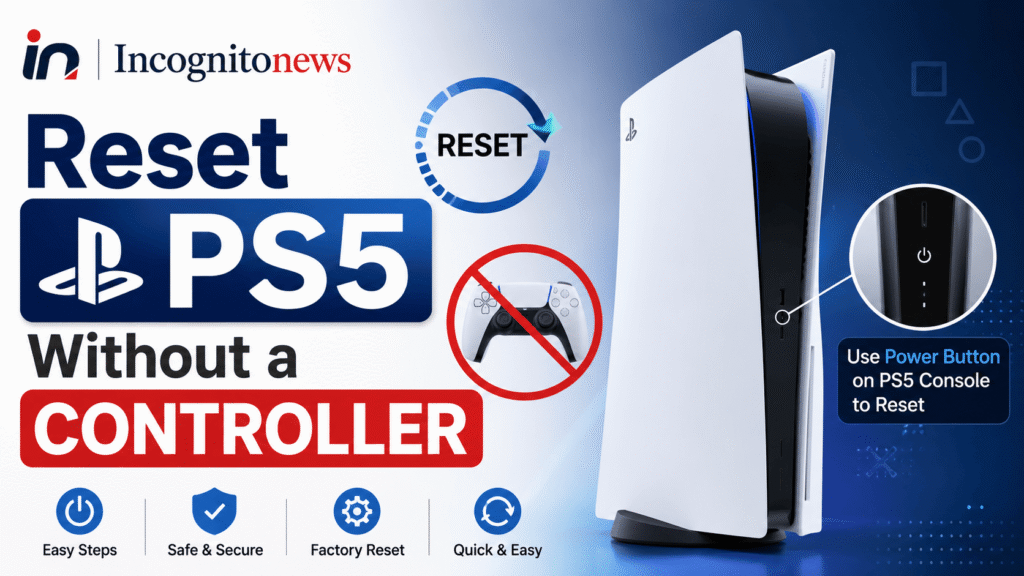
The most reliable way to troubleshoot and reset your PlayStation 5 without a controller is by utilizing the physical hardware buttons located on the front of the console.
How to Turn on PS5 Safe Mode Without Controller
Safe Mode is a diagnostic menu that loads the console’s operating system with only the most basic drivers active. This allows you to perform database rebuilds, software updates, and system restores.
- Turn off your console completely by pressing and holding the Power button on the front of the device for approximately three seconds. The power indicator light will blink for a moment and then turn off.
- Once the console is fully powered down, press and hold the Power button again.
- Keep the button pressed down for approximately seven seconds. You will hear one beep immediately when you first press the button, and a second beep seven seconds later.
- Release the button after the second beep.
- The console will boot up in Safe Mode, displaying a black screen with white text.
Note: The front panel buttons vary slightly between the Disc Edition and the Digital Edition of the PS5. On the Disc Edition, the Power button is the larger of the two buttons on the front panel (the smaller button is the Disc Eject button). The Digital Edition only features a single Power button.
Method 2: Navigating Safe Mode Using a USB Keyboard
Once you successfully boot your console into Safe Mode, you will see a message on the screen instructing you to: “Connect a DualSense wireless controller using a USB cable and press the PS button.”
If your controller is completely broken or unavailable, you cannot press the PS button. However, you can bypass this screen by using a standard USB computer keyboard.
Bypassing the Controller Screen:
- Locate any standard wired USB keyboard (or a wireless keyboard with a USB dongle).
- Plug the USB cable (or the wireless dongle) into one of the USB ports on the front or back of the PS5.
- The console will automatically recognize the keyboard input.
- Use the Arrow Keys on the keyboard to navigate up and down the Safe Mode menu.
- Use the Enter Key to select options, and the Escape Key to go back.
Initiating the Reset:
- Navigate down the menu to Option 6: “Reset PS5” (or Option 7: “Reset PS5 (Reinstall System Software)” if you need a fresh OS installation).
- Press Enter.
- Select “Yes” to confirm that you want to delete all user data and restore the console to factory settings.
- The console will begin the factory restore process, which can take ten to fifteen minutes. Do not power off the console during this time.
If you are setting up other wireless audio hardware on your gaming devices, you can also read our guide on how to connect AirPods to laptop to pair your headphones for PC gaming.
Method 3: Using a USB Mouse to Reset via Settings (If PS5 is On)
If your console is booted normally and you are stuck on the main home screen (but cannot move because your controller won’t connect), you can use a wired USB mouse to navigate the standard settings menu.
- Plug a standard wired USB mouse into one of the front USB ports on the PS5.
- A cursor will appear on the screen.
- Click and drag to navigate to the top-right corner of the home screen and click the Settings (Gear) icon.
- Click on System, then select System Software.
- Click on Reset Options.
- Select Reset Your Console.
- Confirm the reset. The system will wipe the SSD and reboot.
Method 4: Using the PlayStation App or TV Remote (HDMI-CEC)
If you have previously enabled certain convenience features in your console settings, you may be able to control your PS5 using your television remote.
The HDMI-CEC Workaround
HDMI-CEC (Consumer Electronics Control) is a feature that allows your TV remote to control devices connected via HDMI. On the PS5, this feature is labeled as “Enable HDMI Device Link.”
- Turn on your television and switch the input to your PS5.
- Grab your TV remote and press the Arrow Buttons.
- If HDMI-CEC is enabled on both your TV and PS5, the TV remote will move the cursor on the PS5 dashboard.
- Navigate to Settings > System > System Software > Reset Options > Reset Your Console.
- Confirm the action using your TV remote’s OK/Select button.
FAQs: Frequently Asked Questions
Is there a physical PS5 hard reset button on the console?
No. Unlike older electronic devices, the PS5 does not have a pinhole reset button. To perform a hard reset, you must enter Safe Mode by holding the power button for seven seconds (until the second beep) and select the reset option using a USB keyboard.
Can you control a PS5 with a keyboard?
Yes. You can plug a wired USB keyboard or a wireless keyboard with a USB dongle into the PS5. This works both on the normal home dashboard and inside the diagnostic Safe Mode menu, allowing you to navigate and reset the console without a controller.
How do I factory reset my PS5 if I don’t have a controller?
Turn off the PS5 completely. Press and hold the power button for seven seconds until you hear a second beep to boot into Safe Mode. Plug a USB keyboard into the console, use the arrow keys to select “Reset PS5,” and press Enter to confirm the reset.