Few smartphone issues are as frustrating as turning on your iPhone only to find it frozen on the white or black Apple logo screen. Often referred to as a boot loop or frozen startup screen, this problem prevents your device from booting into the iOS home screen, rendering the phone completely unresponsive.
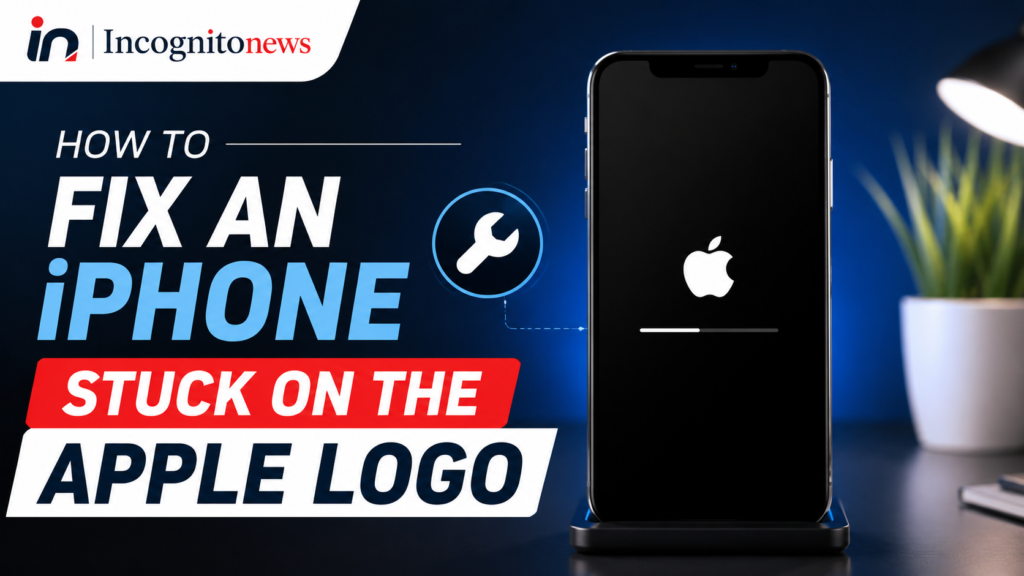
Whether your iPhone became stuck after a recent iOS software update, suffered a system crash due to critically low internal storage space, or unexpectedly froze during daily use, you do not immediately need to visit an Apple Store.
In most cases, an iPhone stuck on the Apple logo is caused by a temporary software glitch that can be resolved at home. In this comprehensive troubleshooting guide, we cover the primary causes of iPhone boot loop freezes and five proven step-by-step methods to fix your device without losing your personal data.
Common Causes Why Your iPhone is Stuck on the Apple Logo
Understanding why your iPhone refuses to boot past the Apple logo helps you select the correct repair method. The most frequent causes include:
- Interrupted iOS Updates: If your iPhone ran out of battery power, lost Wi-Fi connection, or was disconnected during an over-the-air (OTA) iOS update, system boot files may become corrupted.
- Critically Low Storage Space: When an iPhone’s internal storage drops below 1 GB, iOS lacks the temporary memory buffer required to unpack system files during startup, causing a boot loop freeze.
- Corrupted App or System Cache: A malfunctioning application or corrupted system cache file can prevent the operating system from executing its normal startup sequence.
- Hardware or Battery Degradation: Physical drops, water ingress, or a degraded lithium-ion battery supplying inconsistent voltage can prevent the logic board from completing boot checks.
Method 1: Force Restart Your iPhone (Model-by-Model Guide)
The fastest and safest first step is a Force Restart (also known as a hard reset). Unlike a standard power down, a force restart cuts hardware power briefly and forces the operating system to clear temporary memory caches without erasing any personal data.
Because button layouts vary across iPhone generations, follow the specific key combination for your model below:
For iPhone 8, iPhone SE (2nd & 3rd Gen), iPhone X, 11, 12, 13, 14, 15, and 16 Series
- Press and quickly release the Volume Up button.
- Press and quickly release the Volume Down button.
- Press and hold the Side (Power) button.
- Continue holding the Side button for 10 to 15 seconds, ignoring the “Slide to Power Off” slider if it appears.
- Release the button only when the screen turns completely black and the Apple logo reappears.
For iPhone 7 and iPhone 7 Plus
- Press and hold both the Volume Down button and the Sleep/Wake (Power) button simultaneously.
- Continue holding both buttons for approximately 10 seconds.
- Release both buttons when the screen turns off and the Apple logo reappears.
For iPhone 6s, iPhone SE (1st Gen), and Earlier Models
- Press and hold both the Home button and the Top (or Side) power button simultaneously.
- Hold both buttons together for 10 to 15 seconds.
- Release both buttons when the Apple logo flashes on the screen.
Method 2: Charge Your iPhone Using an Official Apple Cable
If your iPhone attempts to boot up with an extremely low or degraded battery, the device may lack the electrical current required to power the processor through startup initialization, resulting in a frozen Apple logo loop.
- Connect your iPhone to an official Apple Wall Charger or MFi-certified Lightning/USB-C cable.
- Plug the charger into a functioning wall outlet rather than a computer USB port.
- Allow the iPhone to charge uninterrupted for at least 30 to 45 minutes.
- While still connected to power, attempt the Force Restart method outlined in Method 1 above.
Method 3: Update iOS via Recovery Mode (Preserves Your Data)
If a force restart does not resolve the frozen screen, your iPhone’s operating system files may be corrupted. You can repair iOS by placing the phone into Recovery Mode and connecting it to a computer.
Crucially, selecting the “Update” option reinitializes system files while preserving all your photos, messages, contacts, and personal app data.
Step 1: Connect to a Computer
Connect your iPhone to a Mac running macOS Catalina or later (using Finder) or a Windows PC (using the Apple Devices app or iTunes).
Step 2: Put Your iPhone into Recovery Mode
While your device is connected to the computer, execute the force restart button combination for your model (as detailed in Method 1), but do not release the buttons when the Apple logo appears. Continue holding until the Recovery Mode Screen (showing a computer icon and cable) displays on your iPhone.
Step 3: Choose the “Update” Option
A pop-up window will automatically appear on your computer screen stating: “There is a problem with the iPhone that requires it to be updated or restored.”
- Click “Update” (DO NOT click “Restore”, as Restore will erase your device).
- Your computer will download the latest official iOS firmware package directly from Apple servers.
- If the download takes longer than 15 minutes, your iPhone may automatically exit Recovery Mode. Simply allow the download to complete, then repeat the button steps to re-enter Recovery Mode.
- Once processing completes, your iPhone will restart automatically with intact personal data.
Method 4: Perform a DFU Mode Restore (For Severe Software Corruption)
If Recovery Mode fails to resolve the boot loop, the deepest level of software restoration available is Device Firmware Update (DFU) Mode.
DFU Mode bypasses the main iOS bootloader entirely, allowing your computer to reflash the low-level firmware directly onto the device hardware.
Important Note: A DFU Restore will completely erase all data from your iPhone. Only proceed with this method if you have a recent iCloud or computer backup available.
How to Enter DFU Mode on iPhone 8 and Newer Models:
- Connect your iPhone to your computer using a certified USB cable.
- Press and quickly release Volume Up, then press and quickly release Volume Down.
- Press and hold the Side button for 10 seconds until the screen turns black.
- While continuing to hold the Side button, press and hold the Volume Down button for 5 seconds.
- After 5 seconds, release the Side button while continuing to hold the Volume Down button for another 10 seconds.
- If the screen remains completely black (no Apple logo or text), your iPhone is successfully in DFU Mode. Your computer screen will alert you that a device in recovery has been detected.
- Select “Restore iPhone” on your computer screen to perform a clean factory installation.
Method 5: Inspect for Physical Hardware Damage
If your iPhone remains frozen on the Apple logo despite attempting force restarts, Recovery Mode updates, and DFU restores, the issue is likely hardware-related.
Common Hardware Triggers:
- Failing Lithium-Ion Battery: A degraded battery that can no longer supply stable voltage under peak boot draw.
- Liquid Contact: Water or moisture exposure corroding internal logic board connectors or shorting the proximity sensor array.
- Logic Board / Storage Component Damage: Micro-cracks in the motherboard caused by physical impacts.
If you suspect hardware failure, schedule a service appointment at an authorized Apple Store Genius Bar or an Apple Authorized Service Provider for physical diagnostic testing.
iPhone Boot Loop Troubleshooting Summary Table
The table below summarizes the five repair methods ranked by technical complexity and data safety:
| Repair Method | Primary Purpose | Risk of Data Loss | Success Rate for Boot Loops | Recommended Tool |
|---|---|---|---|---|
| Method 1: Force Restart | Clears temporary cache glitches | Zero Risk (100% Safe) | High (For minor freezes) | Hardware Buttons |
| Method 2: Wall Charger | Resolves low-voltage loop | Zero Risk (100% Safe) | Moderate (For low battery) | Official Apple Charger |
| Method 3: Recovery Update | Replaces corrupted iOS system files | Zero Risk (Keeps Data) | Very High (For update bugs) | Mac Finder / iTunes |
| Method 4: DFU Restore | Complete firmware reflash | High Risk (Erases Device) | Very High (For deep corruptions) | Computer + Backup |
| Method 5: Hardware Repair | Replaces damaged physical parts | Varies by repair type | Required for hardware drops | Apple Store Genius Bar |
Frequently Asked Questions
Will forcing a restart erase photos or messages on my iPhone?
No. A force restart (hard reset) simply interrupts power to temporary system RAM and forces a clean reboot. It does not erase your photos, contacts, text messages, or installed apps.
Why did my iPhone get stuck on the Apple logo after updating iOS?
Update freezes usually occur if the iPhone’s battery died during installation, if the Wi-Fi connection dropped while installing system packages, or if the device lacked sufficient free internal storage space to complete file extraction.
How long should I wait on the Apple logo screen before trying a fix?
Under normal conditions, an iPhone boots up within 30 to 60 seconds. If your device remains stuck on the Apple logo screen for longer than 5 to 10 minutes without showing a progress bar, it is officially frozen and requires troubleshooting.
Disclaimer: Experiencing an iPhone stuck on the Apple logo can be stressful, but the vast majority of boot loop issues are caused by temporary software conflicts that can be fixed at home. By starting with a simple force restart and proceeding to a Recovery Mode system update, you can restore your iPhone to full operation safely.