Deciding to end your streaming membership is a great way to save money, especially with the constant rise in subscription fees. If you are looking to cut back on monthly expenses or simply tired of the current show catalog, you might be asking: how to cancel my netflix subscription?
Fortunately, the process is straightforward, but it can vary depending on how you originally signed up for the service. Whether you pay Netflix directly with a credit card, or your billing is handled through Apple, Google, or a mobile carrier bundle like T-Mobile, you must follow the correct path to ensure you are not charged again.
Before you make the final decision to cancel netflix, you should review your billing cycle and watch list to see if there are any pending shows you want to finish watching before your access officially expires.
In this comprehensive guide, we will walk you through exactly how to cancel netflix subscription plans on any device, detail what happens to your profile data and watch history after you leave, and explain the official Netflix refund policy.
1. How to Cancel Netflix Directly via Web Browser
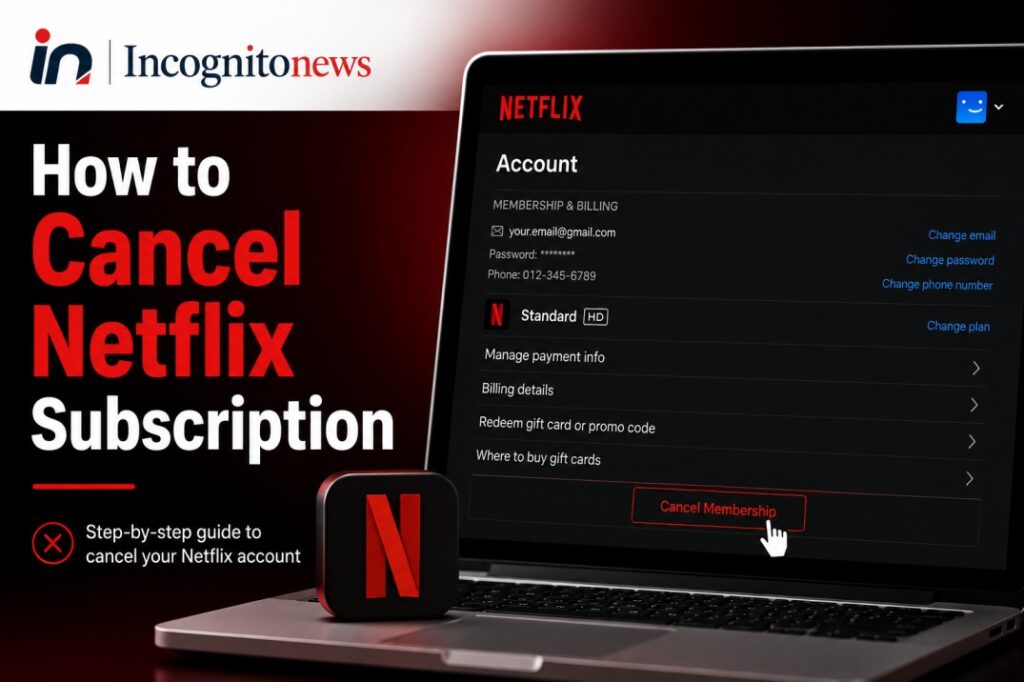
If you sign up for Netflix directly through their website using a credit card, debit card, or PayPal, the easiest way to perform a netflix cancel is through your desktop or mobile web browser.
Note that you cannot cancel your subscription directly from the Netflix app on smart TVs or gaming consoles; you must use a browser.
Follow these steps to cancel netflix:
- Open your web browser and go to Netflix.com.
- Log into your account using your primary profile (avoid using a Kid’s profile, as settings are restricted).
- Hover over your profile icon in the top-right corner and click on Account.
- In the “Membership & Billing” section at the top of the page, click the Cancel Membership button.
- You will be redirected to a confirmation page. Click Finish Cancellation to finalize the process.
2. How to Cancel Netflix Subscription on Apple Devices (iPhone & iPad)
If you initially signed up for Netflix using your Apple ID on an iPhone, iPad, or Apple TV, your billing is handled directly by Apple. In this scenario, trying to cancel through the Netflix website will not work. You must manage your subscription through your iOS system settings.
Follow these steps to cancel on iOS:
- Open the Settings app on your iPhone or iPad.
- Tap on your Name/Apple ID profile at the top of the screen.
- Select Subscriptions from the menu.
- Locate Netflix from the list of active subscriptions and tap on it.
- Tap Cancel Subscription (or “Cancel Free Trial” if you are in a trial period).
- Confirm the cancellation in the popup box.
3. How to Cancel Netflix Billed Through Google Play (Android)
If you subscribed to Netflix on an older Android device using Google Play billing, your payments are managed by Google. Follow these steps to cancel netflix subscription plans billed through Google:
- Open the Google Play Store app on your Android device.
- Tap your profile icon in the top-right corner.
- Select Payments & subscriptions, then tap Subscriptions.
- Find Netflix in the list and select it.
- Tap Cancel subscription and follow the on-screen prompts to confirm.
4. How to Cancel Netflix Billed Through Third-Party Partners (T-Mobile, Verizon)
Many Americans get their Netflix subscription bundled for free or at a discount through mobile carriers (like T-Mobile’s “Netflix on Us” plan), cable providers (like Comcast Xfinity), or digital bundles (like Verizon +Play).
If your account is billed through a partner, the standard cancel netflix button on Netflix.com will display a message directing you to that partner’s portal.
- For T-Mobile: Log into your T-Mobile account online or via the T-Life app. Navigate to Manage Add-Ons under your account plans, deselect Netflix, and save the changes.
- For Verizon: Log into your My Verizon account, go to the Services & Perks or +Play dashboard, locate Netflix under active services, and select cancel.
- For Comcast/Xfinity: Log into your Xfinity account portal, navigate to your billing details, go to apps and subscriptions, and disable Netflix billing.
What Happens After You Cancel Netflix?
Many users are hesitant to hit the cancel button because they are worried about losing their watch history, custom profiles, or saved lists. Here is what happens after you cancel your membership:
1. You Keep Access Until Your Billing Date
When you perform a cancel netflix command, your account does not close immediately. You will continue to have full access to stream all movies and shows in your plan until the very last day of your current billing cycle.
- For example, if your billing cycle resets on the 20th of every month and you cancel on the 5th, you will still be able to watch Netflix for the next 15 days without paying anything extra.
2. Netflix Saves Your Data for 10 Months
If you decide to come back to the platform in the future, you do not have to start from scratch. Netflix officially saves your profile details, watch history, My List, game saves, and ratings for exactly 10 months after your membership is canceled. If you reactivate your subscription within this 10-month window, all your profiles and recommendations will be fully restored.
3. Account Deletion Request
If you want Netflix to delete all of your personal data and account details immediately rather than waiting 10 months, you can send an official request. Using the email address associated with your Netflix account, send an email to privacy@netflix.com requesting immediate account deletion.
Official Netflix Refund Policy: Can You Get a Refund?
Many subscribers wonder if they can get a partial or pro-rated refund if they cancel in the middle of their billing cycle.
- No Pro-rated Refunds: Netflix does not offer refunds or credits for partially used monthly subscription periods. Once your monthly fee is processed, it cannot be refunded.
- Exceptions: Under rare circumstances or local state laws, you may be eligible for a refund if you were charged accidentally or if your account was compromised. To request a refund review, you must contact Netflix Customer Support directly through the “Start Live Chat” button in the Netflix Help Center.
Frequently Asked Questions (FAQs)
How to cancel netflix on tv?
You cannot cancel Netflix directly through the app on a Smart TV, Apple TV, or Roku. To cancel, you must log into your account using a web browser on your phone, tablet, or computer, navigate to the Account settings, and select Cancel Membership.
Why is there no cancel button on my Netflix account?
If you do not see a “Cancel Membership” button on your Account page, it means your billing is handled by a third-party partner (such as Apple, Google Play, T-Mobile, or Verizon). You must log into the partner’s billing portal to cancel your subscription.
Does deleting the Netflix app cancel my subscription?
No. Deleting the Netflix app from your phone, tablet, or TV does not cancel your subscription. Your bank account will continue to be billed every month until you officially cancel the membership through your Account settings or third-party billing portal.